Ask Your AI Assistant About Your Business — Right From Claude or ChatGPT
If you use an AI app such as Claude or ChatGPT, you can now connect it to
your Optify Flex account in a few minutes, then ask it about your stock, sales, customers and
accounts the way you would ask a colleague. No keys, no programmer, no technical settings — and
only with your own permissions.
The AI app you use every day is smart, but it knows nothing about your company. The Optify
AI Connector is a permission you give your assistant: it can read from Optify
what you are able to read — and then answer you from your real numbers.
Think of it as handing a personal assistant a viewing pass to the company
files: it sees only what you see, it cannot write or change anything, and you can take the
pass back at any moment.
You won't need an "API key", and you never give your password to any app. You sign in on
Optify's own page, exactly as you do every day.
Before you start
An Optify Flex account — the user name and password you already sign in
with.
The service turned on for your company — your company's system
administrator turns on the AI Connector once (next section). If it isn't on yet, you'll see
a message saying so when you connect.
An account in an AI app that lets you add a custom
connector — such as Claude. Whether this is available depends on your plan in that
app.
The Optify connector address — you'll copy and paste it once:
https://optifyerp.com/mcp
For the administrator: turn the connector on (once)
Only your company's system administrator does this step. If you're an employee, ask them to
turn it on, then go to the next section.
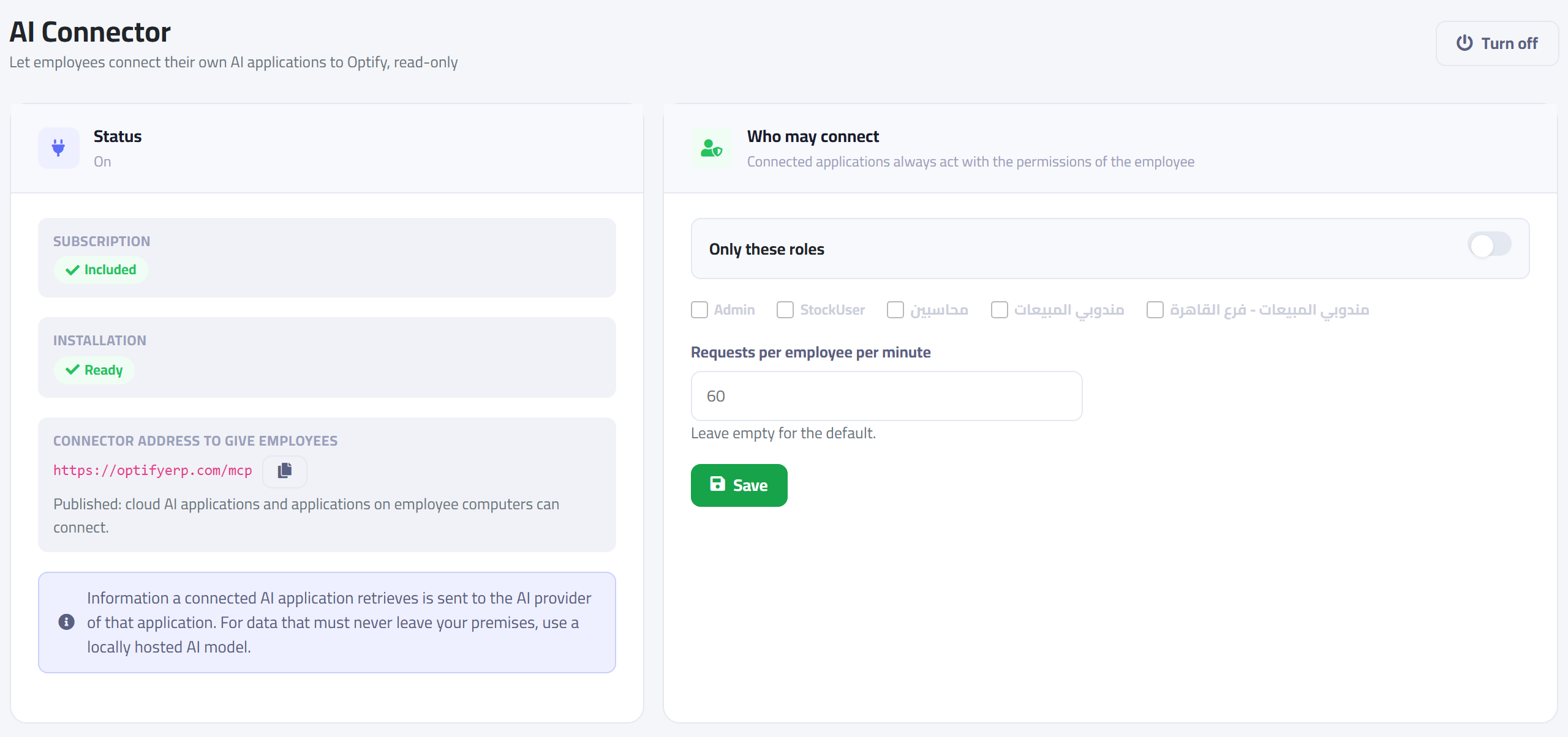
Sign in to Optify and open the AI Connector screen from the menu (you can
type its name in the menu search box).
Check that Subscription says "Included" and Installation
says "Ready".
Click Turn on at the top of the screen. (Once the connector is on, a
"Turn off" button appears in its place, as in the picture below.)
Choose who may connect: every employee (the default), or switch on "Only
these roles" and pick specific roles — for example, only accountants and sales managers.
The administrator's AI Connector screen: status and the connector address on the
left, who may connect on the right.
From the same screen the administrator can see every connected app in the company and cancel
any of them, or turn the whole connector off with one click.
Connect Claude in five steps
These steps are on the Claude website (claude.ai). Once you add the connector, it also appears in
the Claude desktop and mobile apps on the same account.
In Claude, open Settings, then Connectors.
Click Add, then Add custom connector.
Type a name you'll recognise, such as Optify, and paste this into the
address field: https://optifyerp.com/mcp — then click Add.
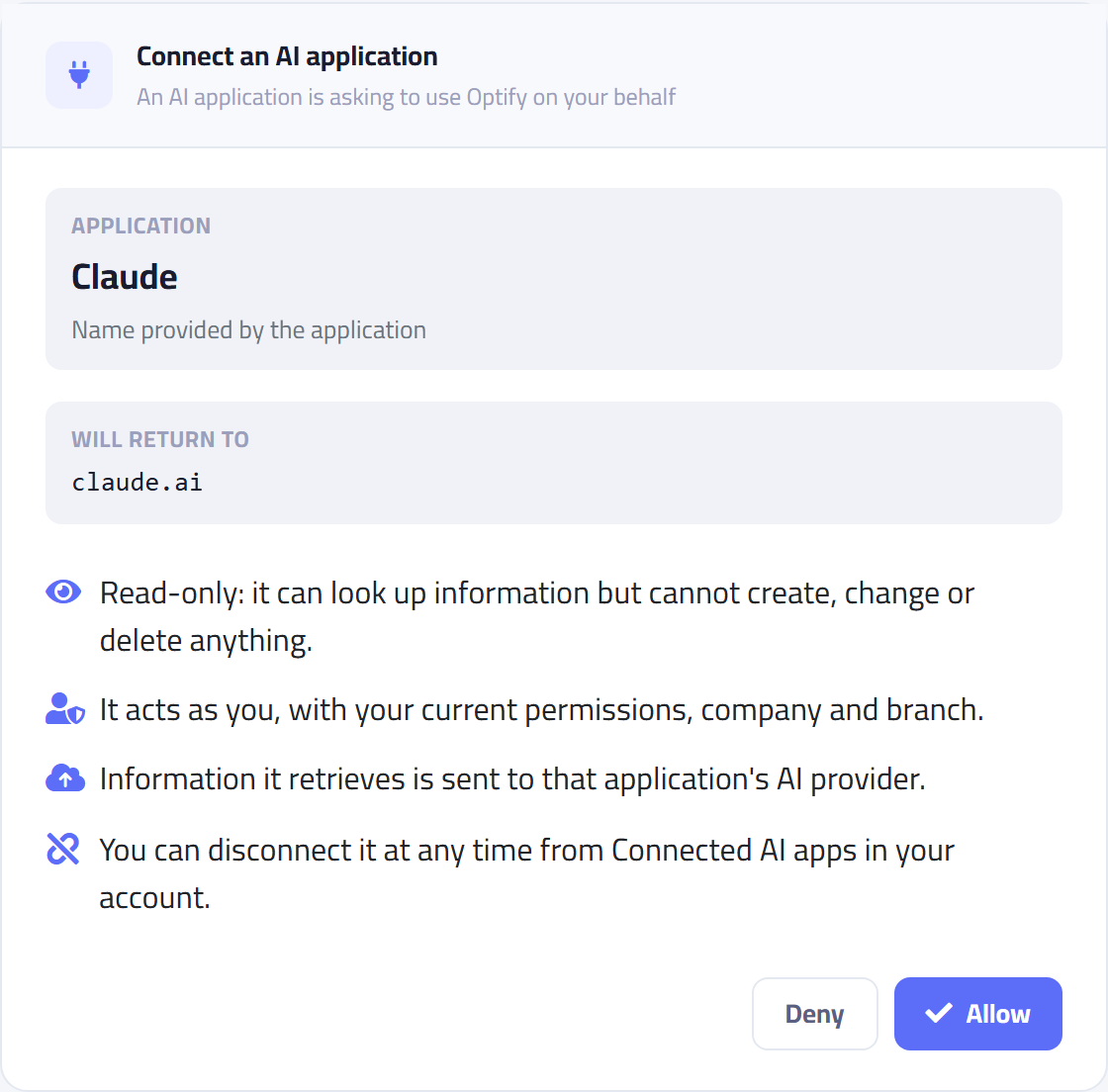
Click Connect next to the new connector. An Optify page opens: sign in as
usual, then click Allow on the approval screen (see the picture below).
Start a new chat in Claude and ask about your company. If Claude doesn't use the connector,
switch it on from the tools menu under the message box.
The Optify approval screen: read it, then click "Allow". Note that the app will
return to claude.ai.
What the approval screen tells you
Application: the name of the app asking for permission. Make sure it's the
app you're actually using.
Will return to: the site you'll go back to after approving — for Claude
it's claude.ai. If you see an address you don't recognise, click "Deny".
Read-only: it can't create, change or delete anything in Optify.
It acts as you: it sees only what you see, in your current company and
branch.
Try these questions
Write naturally, in English or Arabic. For example:
"How many 6 mm screws do we have in the main warehouse?"
"Which items have dropped below their reorder level?"
"What are this month's total sales compared with last month?"
"Who are the 5 customers who owe us the most, and since when?"
"Show the latest invoices from supplier Al Nour, and have they been paid?"
"How many days of annual leave do I have left?"
You can also ask your assistant to summarise the answer in a table, or turn it into a message for
your manager — that's the assistant's own work, and the figures come from Optify.
ChatGPT and other apps
The connector is built on an open standard called MCP that many AI apps
support, so connecting in any app looks much like what we did with Claude:
Look in the app's settings for Connectors, Apps or
MCP.
Choose to add a custom connector and paste the address
https://optifyerp.com/mcp.
When the Optify page opens, sign in and click "Allow".
ChatGPT: adding custom connectors is available on some plans only, and may
require turning on an advanced option in settings. Menu names change from time to time.
Other apps (such as Microsoft Copilot and others): availability differs
from app to app and from plan to plan.
We have officially tested the connection with Claude. Other apps that
support the same standard usually work the same way; if you run into a problem, contact
support.
Your security and privacy
Read-only: the assistant can't create an invoice, change a price or delete
any record. Any change is made from the Optify screens as usual.
With your permissions: if you can't see costs or salaries on your screens,
the assistant can't see them either. If the administrator changes your permissions, the
change applies immediately.
Your company only: no other company's data on Optify Flex can be reached.
Every lookup is logged: the administrator can see which app looked up what,
and when.
Instant stop: if you change your password, or the administrator suspends
your account or the connector, the connection stops right away.
Important: what the assistant reads from Optify is sent to the company
behind that app (such as Anthropic for Claude, or OpenAI for ChatGPT) to write the answer,
and that company's privacy policy applies to it. Don't connect an app you don't trust, and
follow your company's policy on using AI.
Disconnect at any time
From your account menu in Optify (click your name at the top of the screen) choose
Connected AI apps. You'll see every app you've connected, when it was last
used, and when it expires. Click Disconnect next to any app and it stops
immediately.
The Connected AI apps page: each app with its status and a "Disconnect" button.
If you don't use the connection for 30 days, it ends automatically.
Even with daily use, Optify asks you to renew your approval every 90 days —
you just sign in and click "Allow" again.
If you see a message
"The AI connector is not available" when connecting
The connector isn't turned on for your company, or your subscription doesn't include it.
Contact your company's system administrator.
The assistant says the connector is "turned off by the administrator"
The administrator has paused the connector, or limited it to roles that don't include you.
Your connection hasn't been deleted, and it works again once the administrator turns it
back on.
The assistant says you "don't have permission" for something
That's expected: the assistant sees only what you see. If you need that information for your
work, ask your system administrator for the permission.
"Too many requests"
The assistant sent a lot of questions within one minute. Wait a minute and try again.
The assistant asks me to connect again
The connection period ended (30 days without use, or 90 days since your last approval), your
password was changed, or someone disconnected it. Click Connect again, sign in, then
"Allow".
Does this use Optify's AI credits?
No. The connector doesn't use the allowance of the AI assistant built into Optify. The cost
of the AI app itself (such as a Claude or ChatGPT subscription) depends on your plan with
that app.
Need help?
Our support team can walk you through connecting step by step, or help turn the service on for
your company. You can also use the AI assistant
built into Optify (page in Arabic) straight from the system's screens, with no connection
needed.